Reloop Mixtour
The Reloop Mixtour is a 2 deck USB DJ controller. You can configure it to be used for any two of your four decks [1] or, in the future, align automatically with the selected decks [2] .
New in version 2.5.
Controller Mapping
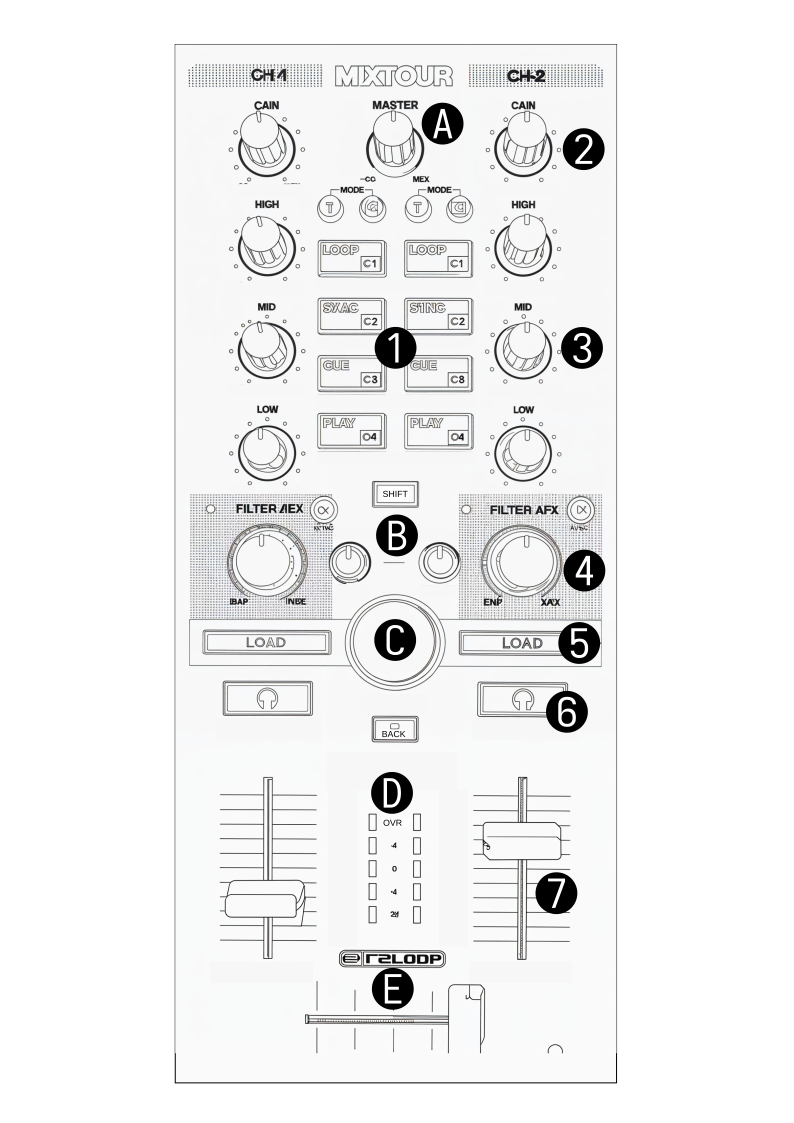
Controller Overview
Main section
Id |
Control |
Function |
|---|---|---|
A |
MASTER |
Control main output volume. |
B |
SHIFT |
Enable access to secondary Functions. |
B |
CUE VOL. |
Controls the headphone volume. |
B |
CUE MIX |
Adjust Headphone Mix between selected PFL channel and Main output. |
C |
Encoder |
Browse up and down in the Library. |
C |
SHIFT + Encoder |
Browse left and right in the Library. |
C |
Press Encoder |
Change active Library window. |
D |
Back |
Toggle maximized view of library section of the user interface. |
D |
LED Band |
Show PFL or Main output level. [3] |
E |
Crossfader |
Fade between the Decks |
Pad section
The Pad mode can be selected with the Buttons above the pads, T or C.
Id |
Control T |
Function |
|---|---|---|
1(T) |
LOOP |
Start or End Loop (size is defined in mixxx UI). |
1(T) |
SHIFT + LOOP |
Decrease the Loop size by 2. halve the size. |
1(T) |
SYNC |
Synchronize the BPM to the other deck. |
1(T) |
SHIFT + SYNC |
Increase the Loop size by 2, double the size. |
1(T) |
CUE |
Play / set cue, dependent on your configured Cue mode settings. |
1(T) |
SHIFT + CUE |
Unset cue. |
1(T) |
PLAY |
Play or Pause the current Track. |
1(T) |
SHIFT + PLAY |
Toggle Reverse Play mode. |
Id |
Control C |
Function |
|---|---|---|
1(C) |
Cx |
Jump to the configured Hot-Cue point. If non is set, set one. [4] |
1(C) |
SHIFT + Cx |
Remove the configured Hot-Cue point. [4] |
Mixer section
Id |
Control |
Function |
|---|---|---|
2 |
GAIN Knob |
Adjust input gain for the chosen Deck. |
3 |
HIGH Knob |
Top control for the selected Quickeffect Chain, default high frequencies in Filter mode. |
3 |
MID Knob |
Middle control for the selected Quickeffect Chain, default mid frequencies in Filter mode. |
3 |
LOW Knob |
Bottom control for the selected Quickeffect Chain, default low frequencies in Filter mode. |
4 |
FX Button |
Add Effect to the chosen Deck. [5] |
4 |
FX Knob |
Super Knob to filter out High frequencies (turn left) or low frequencies (turn right). If FX Button is active, Knob will control the Effect intensity. |
4 |
FX LED |
Light up when Super Knob is actively used as frequency filter. |
5 |
LOAD |
Load the current Track to the chosen Deck. |
5 |
SHIFT + LOAD |
Move left and right in your Library. |
6 |
🎧 |
Monitor the current Deck via the Headphon e (PFL - Pre Fade Listener). |
6 |
SHIFT + 🎧 |
Loads selected Track into the preview Deck and starts playing it in preview mode. |
7 |
Fader |
Adjust channel volume. |
7 |
SHIFT + Fader zero to top |
Fader Start, start the track from the current position. |
7 |
SHIFT + Fader top to zero |
Fader Stop, stop playing the track and go back to cue point. |